CERTIFICATE OF COMPLETION – MD. SOHEL RANA

This is to certify that Md. Sohel Rana successfully completed the hands-on training on Microsoft Office Applications (Computer Basic).
Taught by: Sadhan Verma, Data Science Instructor at NBICT LAB’s e-learning platform
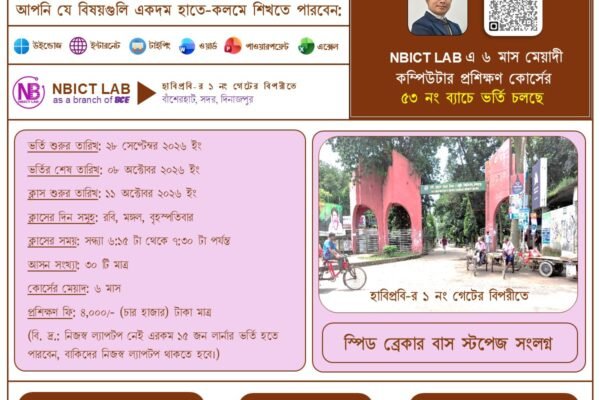
Course Duration: 6 Month
Learner’s Email Address: rana.sohel.1226@gmail.com
Course Contents:
Subject: Windows
Lesson – 1: Boost up Your Windows Performance
- Why does Windows become slow?
- How to clean the temporary junk files
- How to clean the memory
- How to disable unnecessary startup applications
- How to take action against malware
Lesson – 2: Windows 10/11 Installation
- How to download Windows 10/11
- How to download Rufus for creating a bootable Pendrive
- How to check the hard disk partition scheme
- How to make a Pendrive bootable for installing Windows 10/11
- Precautions before installing Windows 10/11
- Removing the necessary files to the safe location
- Checking the SSD to see if it exists
- Checking the size of the C: partition
- How to install Windows 10/11 using a bootable Pendrive
- How to bring the “This PC” icon on the desktop
- How to install Microsoft Office 2019
- How to activate Windows 10/11
- How to check for Windows 10/11 updates
Lesson – 3: Miscellaneous
- Creating a guest user account
- Customization & Personalization of Windows Account
- How to uninstall unnecessary applications
- Signing in to Windows using Microsoft Account
- How to take screenshots
- BitLocker drive encryption
Subject: Internet
Lesson – 1: How to Use OneDrive
- What is OneDrive?
- Downloading OneDrive
- Installing OneDrive
- Setting up OneDrive Desktop
- Understanding OneDrive on Browser
- Assignment submission procedure
Lesson – 2: Microsoft Edge Browser Personalization
- Downloading & installing Microsoft Edge
- Adding a Microsoft account to Edge
- Setting the home page & startup page
- Changing the search engine used in the address bar
- Working with bookmarks
- Assignment submission procedure
Lesson – 3: Emailing with Etiquettes and Best Practices
- Introducing Grammarly
- Understanding to, cc, & bcc
- Writing a message body
- Creating an email signature
- Creating email templates
- Schedule emailing
- Assignment submission procedure
Lesson – 4: Google Account Management
- How to personalize Google account
- How to maintain the security of a Google account
- How to maintain the privacy of a Google account
- How to manage the history settings of the Google account
Lesson – 5: LinkedIn Account Management
- What is LinkedIn?
- Why LinkedIn account is essential?
- Criteria of a complete LinkedIn profile
- Assignment submission procedure
Subject: Typing Speed
Lesson – 1: How to Improve Typing Speed
- Creating an account on the RataType
- How to progress on RataType
- How to boost up your typing speed
- How to get a typing speed certificate from RataType
- Assignment submission procedure
Subject: Microsoft Word
Lesson – 1: Getting Familiar with the Microsoft Word Environment
- How to open the Microsoft Word program
- The start screen
- The quick access toolbar
- The ribbon and tabs
- Ribbon display options
- The Ruler
- The status bar
- Page view options
- Zoom control
- The backstage view
Lesson – 2: Writing Bangla with Avro & Bijoy
- Installing Avro
- Installing some Avro fonts
- How to write Bangla using Avro
- Installing Bijoy
- Installing some Bijoy fonts
- How to write Bangla using Bijoy
- Avro to Bijoy conversion
Lesson – 3: Making a Resume & CV
- Saving the document
- Working with shapes
- Working with images
- Working with text boxes
- Working with tables
- Working with lists
- …..
- …..
Subject: Microsoft PowerPoint
Lesson – 1: Presentation & Slide Basics
- What is a presentation?
- Getting familiar with the PowerPoint environment
- How to insert a new slide
- Duplicating, moving, & deleting slides
- How to copy & paste slides
- How to play the presentation
- How to change the slide size
- How to format the slide background
- How to apply a theme
Lesson – 2: A Project on Presentation Slides Design
- Saving an image background to your computer
- Setting an image as a slide background
- Working with the slide master view
- Working with text shadows
- Changing cases
- Creating text box outlines
- How to draw and resize a shape
- How to change the fill color of a shape
- How to change the outline color of a shape
- How to write in a shape
- Working with text boxes
- How to adjust text alignment in a box
- How to insert and resize a picture
- Adding glowing effects to a shape
- Modifying shapes
- Modifying shadow effects
- How to edit a shape by using the editing handles
- How to make shape edge soft
- How to customize shadow options
Lesson – 3: Animations & Transitions
- Collecting necessary practice files
- How to apply an animation to an object
- How to remove an animation
- How to add multiple animations to an object
- How to reorder the animations
- How to copy animations with the animation painter
- Working in the animation pane
- How to change effects start option
- How to change the effect timing
Lesson – 4: Hyperlinks, Action Buttons, and SmartArt Graphics
- Collecting necessary practice files
- How to insert a hyperlink
- How to open and test a hyperlink
- How to remove hyperlinks
- How to insert an action button on one slide
- How to insert the action button on all slides
- How to edit the action button
- Working with SmartArt Graphics
Lesson – 5: Rehearsing and Recording Your Presentation
- How to rehearse timings
- How to record a slide show
- How to remove slide timings
Subject: Microsoft Excel
Lesson – 1: Cell Basics & Formatting
- Getting familiar with the Microsoft Excel environment
- How to enter data in Microsoft Excel
- How to insert new rows/columns
- How to change row height & column width
- How to merge cells
- How to use the fill handle
- How to align text in cells
- How to change the fill color & text color
- How to set borders around cells
- How to change border color & style
- How to wrap texts
- How to generate random numbers
- How to format paste options
- How to set currency symbol
Lesson – 2: Formulas, Functions, & Cell References
- How to create a formula using cell references
- How to use a function
- Basic functions of Microsoft Excel: SUM, AVERAGE, MAX, MIN
- Using cell references with multiple worksheets
- Difference between relative & absolute cell references
Lesson – 3: The Practical Uses of IF() Function
- How to use the IF() function
- How to prepare a result sheet using the IF() function
Lesson – 4: The Practical Uses of VLOOKUP() Function
- How to use the VLOOKUP() function
- How to prepare a result sheet using the VLOOKUP() function
Lesson – 5: The Practical Uses of SUMIF() Function
- Basic understanding of the SUMIF() function
- Understanding data validation
- Creating a name for a range
- Practical uses of the SUMIF() function
Lesson – 6: Freezing and Sorting
- How to freeze columns
- How to freeze rows
- How to sort a column in ascending/descending order
- How to sort a cell range
- How to create a custom sort
- How to sort by multiple levels
Lesson – 7: Filtering Data
- How to filter data
- How to apply multiple filters
- How to clear a filter
- How to filter with a search
- How to use the advanced text filters
- How to use advanced number filters
- How to use the advanced date filters
Lesson – 8: Charts and Conditional Formatting
- Understanding charts
- How to insert a chart
- Working with chart layout and style
- Adding chart elements
- Editing chart elements
- Quick Layout
- Changing chart styles
- Switching row and column data
- Changing the chart type
- Moving a chart
- Keeping charts up to date
- Understanding conditional formatting
- How to create a conditional formatting rule
- How to apply multiple conditional formatting rules
- How to use preset conditional formatting
- How to remove conditional formatting
Lesson – 9: PivotTables
- Conditions for creating a PivotTable
- How to insert a PivotTable
- Inserting a PivotTable on the same worksheet
- Inserting a PivotTable on a different/new worksheet
- Getting familiar with PivotTable fields
- Working with count
- Working with calculated field
- How to change the value field settings
- Working with the value-showing options
- Graphical visualization of data
- Working with the chart options